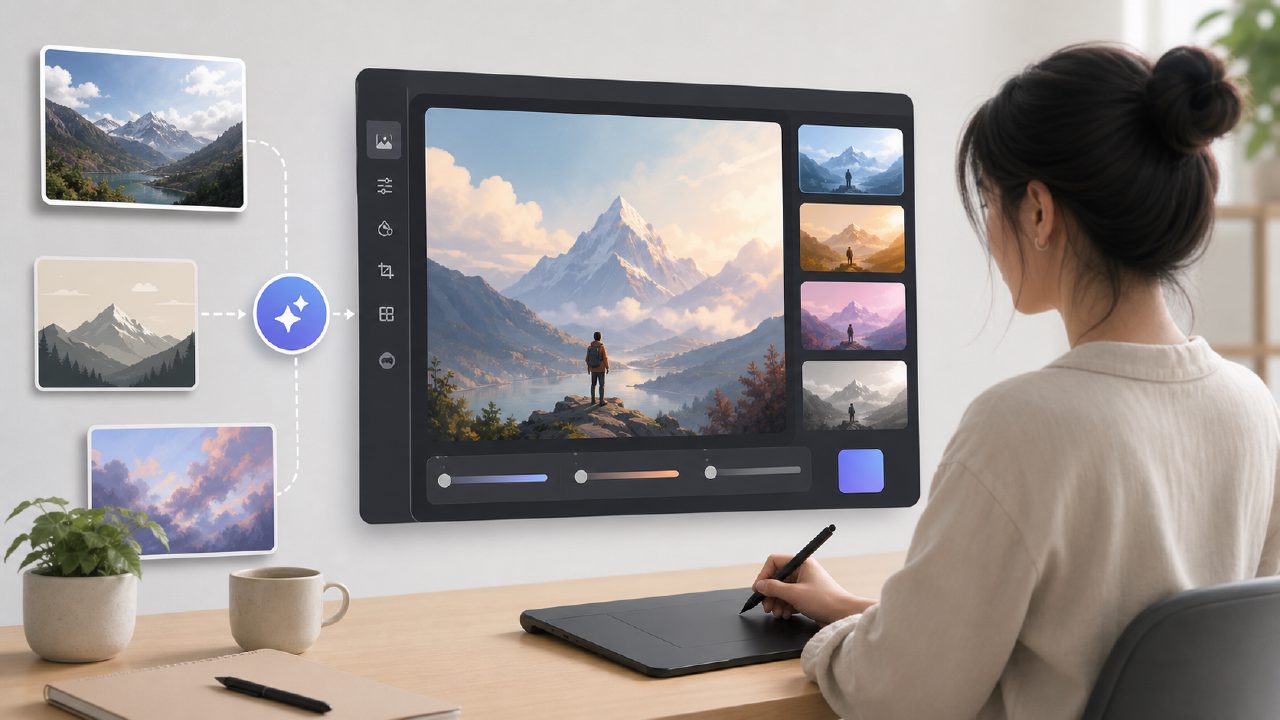
A few weeks ago, I needed a quick visual for a blog post about remote work setups. I’m not a designer, and I didn’t want to spend hours hunting for stock photos that almost fit. So I decided to try Vizly Image Studio, a tool that turns text prompts into images almost instantly. This isn’t a deep dive into every AI art generator out there – it’s a practical look at using Vizly as part of a real AI art tutorial, step by step.
Getting started: the prompt test
I opened Vizly and typed: “a messy desk with a laptop, coffee cup, and sticky notes, good lighting, cozy home office vibe.” The first result was decent – colours were right, lighting was soft – but the sticky notes looked like abstract blobs. That’s the first thing you notice: the tool handles broad scenes well, but details can get fuzzy. I tweaked the prompt to add “sharp sticky notes with handwriting” and the second attempt was noticeably better.
This iteration loop is where Vizly shines. You don’t need to be a prompt engineer, but small adjustments do matter. I spent about three minutes refining my prompt – much faster than editing a stock photo or sketching something from scratch.
A concrete scenario: product concept art
I also wanted to test Vizly for a more creative use – a rough concept for a fictional app interface. I typed “modern weather app with minimal design, smartphone screen, clean background, soft pastel colours.” The output captured the layout idea well, though the text in the mock-up was illegible (a common limitation with AI image generators). That’s fine for early brainstorming, but not for client-ready mock-ups.
This is where the free AI image and video generator 2026 angle matters: Vizly is free to start, with credits that regenerate fast. I didn’t hit a paywall during my tests, which is rare among these tools. But if you need high-resolution output or commercial licensing, you’ll have to check their paid plan.
Tradeoffs and real friction
The biggest tradeoff is consistency. I ran the same prompt twice and got two noticeably different arrangements. For some uses that’s fine – variety can spark ideas. But if you need a repeatable style across multiple images, be ready to lock down a detailed prompt and maybe run a few tests before you settle on one. I also noticed that complex scenes with multiple characters can feel crowded or miss facial expressions. It’s not a weakness unique to Vizly, but worth noting if you’re planning character art.
Another friction: the interface is simple, almost too simple. There’s no prompt history or batch generation view. I had to save images manually each time. For a quick one-off, it’s great. For a series of images, the lack of a gallery view gets annoying.
Is this the best free ai video generator 2026?
I haven’t tested every option, and the landscape moves fast. But within the scope of an AI art tutorial, Vizly does what it promises: turn a text idea into a visual in under a minute. It’s not perfect for polished final assets, but for rough concepts, social media posts, or personal experiments, it’s a solid free option. If you need video generation too, the free tier might not cover it – check their latest offerings.
For now, my blog post got its image. It wasn’t flawless, but it was good enough without outsourcing or spending hours on editing. That’s a win in my book.
Comments
Leave a Comment