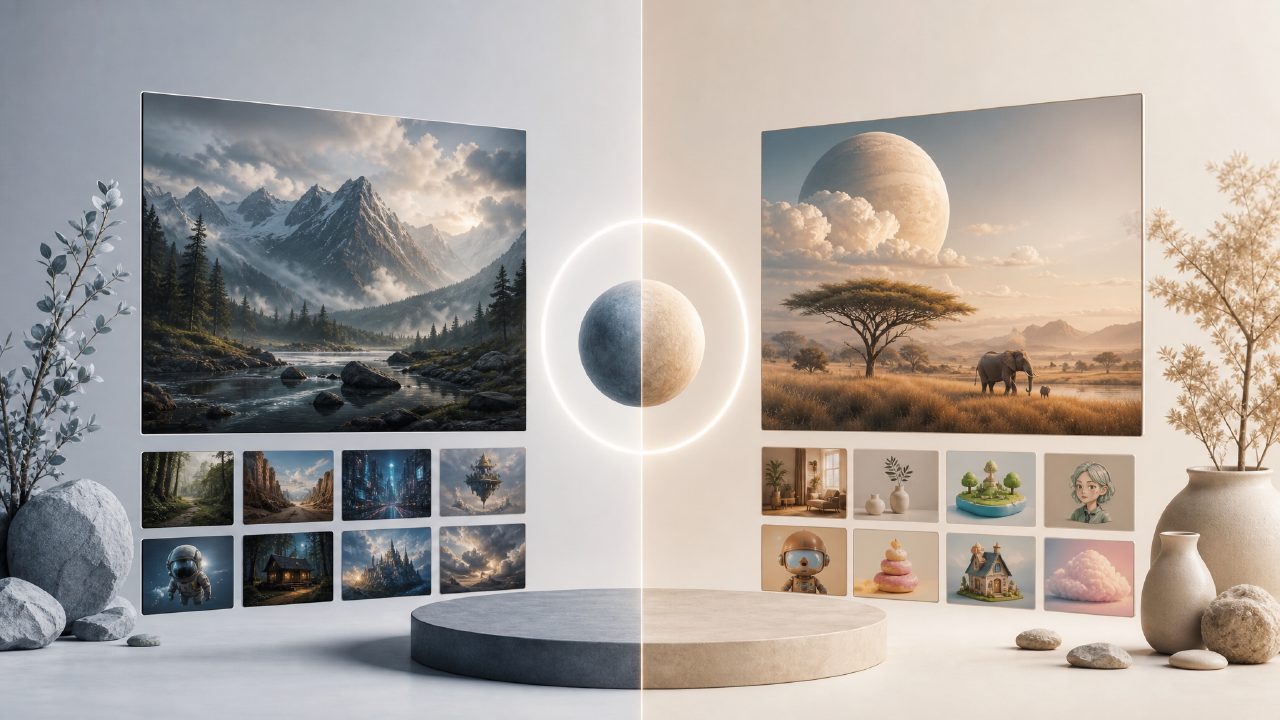
I’ve been messing around with AI image generation for a while now. Like a lot of people, I started with Stable Diffusion running locally on my own machine – because it’s free, open-source, and gives you complete control. But after a few months, I got tired of adjusting settings, downloading models, and waiting for renders on my aging GPU. So I started testing web-based alternatives again, and that’s when I gave Vizly AI Image Generator a proper try. This head-to-head is between the two approaches: running Stable Diffusion yourself versus using Vizly.
The tooling friction: local vs browser
Stable Diffusion is incredibly powerful, but setting it up takes work. You need a decent graphics card, proper dependencies, and some patience with UI like Automatic1111 or ComfyUI. I spent an afternoon just getting the right checkpoint files downloaded and the prompt scheduling to behave. In contrast, Vizly is dead simple: open a tab, type a prompt, and it generates. No drivers, no VRAM limits on my side. The tradeoff is obvious – you lose the fine-grained control that Stable Diffusion offers. You can’t fine-tune a custom model or run the latest experimental techniques. But for someone who just wants a quick visual for a blog post or a design concept, the reduced friction is a real win.
Image quality and prompt adherence
I ran the same prompt through both: “a cyberpunk cat sitting in a rainy neon alley, drinking a tiny cup of coffee.” Stable Diffusion (with a good realistic checkpoint) gave me a very detailed, moody image with nice reflections on the wet ground. But it needed a negative prompt to avoid extra limbs and weird textures. Vizly handled it surprisingly well out of the box – the composition was coherent, the cat had four legs, and the coffee cup actually looked like coffee. I was genuinely impressed. That said, Vizly’s style tends to lean slightly more saturated and “smooth” than what I can get from local Stable Diffusion. If you want a very specific artistic style (oil painting, grainy film), you may need to prompt aggressively or use multiple iterations. Mild friction: Vizly’s free tier limits the number of generations per day, so you can’t experiment endlessly.
What about video?
Here’s where things get interesting. One of the search terms I see a lot is “free ai image and video generator 2026.” Stable Diffusion does have extensions like AnimateDiff for video, but setting that up is another rabbit hole. I tried generating a short looping clip locally and it took forever. Vizly offers a built-in “ai text to image video generator free” capability – you can animate an existing image or create a short video from a prompt. I tested it with a prompt for “lava flowing down a volcano at sunset.” The result was decent: smooth motion, good color consistency, and it didn’t hallucinate weird artifacts like some web video tools do. Is it as good as something like Runway or Pika? Not quite – the motion can feel a bit mechanical, and you can’t control the camera path. But for free, it’s a solid way to get a moving background or an animated concept for social media.
Who should use which?
If you’re the type who enjoys tweaking models, diving into LoRAs, or producing high-end art prints, local Stable Diffusion is still the better bet. You have full control, and the quality ceiling is higher. But if you value convenience, don’t have a powerful GPU, or just need a quick visual for an idea – then Vizly makes more sense. It covers the same fundamental use case (text to image) with less hassle and even handles video well enough for casual use. I wouldn’t use it for a client project that requires pixel-perfect control, but for brainstorming, mockups, or internal content, it’s a strong alternative.
My recommendation: start with Vizly if you’re new or impatient. If you hit its limits, then consider the heavy lift of setting up Stable Diffusion locally. For most people who search “free ai image and video generator” in 2026, Vizly is the more practical answer right now.
Comments
Leave a Comment