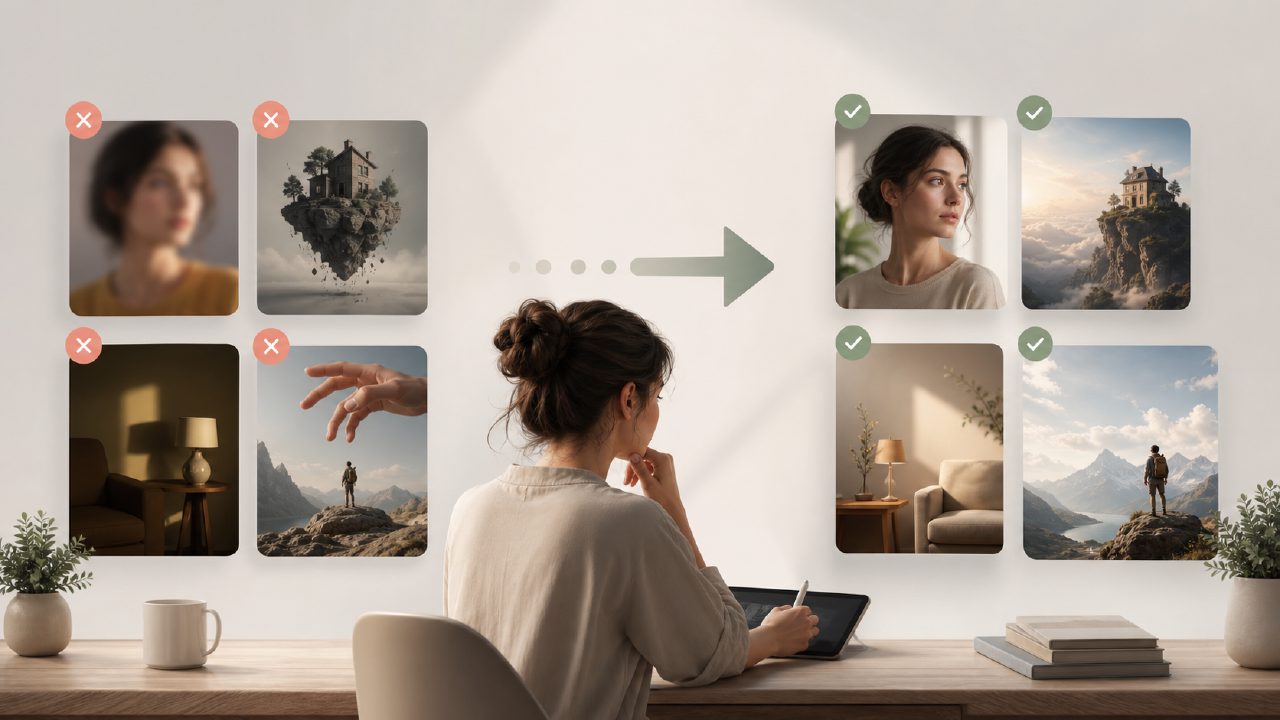
I’ve been testing Vizly for a few weeks now, mostly to see how well it works as a free AI image and video generator for quick graphic concepts. My main interest was in using it for social media visuals and rough mockups — not final production work. I knew it wouldn’t replace a designer, but I wanted to see where the friction points are and what mistakes people keep making when they jump in.
Here’s what I found: a lot of the frustration comes from small, avoidable things. If you’re planning to use Vizly as a go-to ai text to image video generator free for your content pipeline, there are a few gotchas worth knowing upfront.
Overly vague prompts produce sloppy results
The graphic quality from Vizly depends heavily on how specific you get with your text input. I tried something like “modern business graphic” and got a weird abstract blob with text that looked like it was melting. That’s not a bug — it’s just the model being fully literal. You need to specify style, color palette, layout type, and even the mood. One tester I know spent two hours tweaking prompts before getting a clean infographic style. It’s not a “type and done” tool unless your expectations are very low.
Text rendering is still a pain point
If you need any legible text inside your graphic, brace yourself. Vizly does not consistently generate readable words. I tried “Sale – 50% Off” inside a banner concept, and the result had random characters that looked vaguely English but weren’t real words. This is a known limitation across most AI image generators, but for Vizly it feels especially pronounced in graphic design use cases where text is central. Workaround: generate the background visuals separately and add your own text in Canva or Photoshop. It’s an extra step, but it’s the only reliable way.
The free tier has hard caps that sneak up on you
Vizly markets itself as a free AI image and video generator, but “free” here means you get a limited number of generations per day. I hit that ceiling after about 10–12 outputs on my second day of testing. For someone trying to build multiple graphics in one session, that’s a wall. The resolution also drops noticeably after the first few generations — my later images looked softer and less sharp. If you’re considering Vizly as your main free ai image and video generator 2026 go-to, I’d suggest checking the daily quota first. It works fine for sporadic use, but not for batch work.
Video generation feels half-baked
The video side of Vizly is not really production-ready yet. I prompted a simple 5-second motion graphic with a moving logo, and what came out was a jittery sequence with color banding. The graphic elements in the video looked decent in still frames but the motion was unnatural. For basic animated text, maybe. But if you need smooth transitions or logo reveals, you’ll be disappointed. This is still more of a proof-of-concept feature.
Where it works best (if you adjust your expectations)
The sweet spot for Vizly seems to be concept exploration. If you’re brainstorming visuals for a client presentation and you need to quickly communicate an idea without spending hours in design software, it’s genuinely helpful. I’ve used it to generate mood boards and color studies, and those came out fine. The tradeoff is that you can’t rely on it for polished, client-ready graphic deliverables without heavy post-processing.
One real limitation: there’s no good way to iterate on a specific style. You can’t say “make the last one warmer” and get a targeted tweak. You have to regenerate from scratch, which eats into your daily quota fast. This makes the Vizly AI image generator feel more like a sketchpad than a production tool.
Final notes on the gotchas
If you go into Vizly understanding it’s a fast sketch tool rather than a finished product, you’ll have a better time. The common mistakes I see are: expecting perfect pixel accuracy, ignoring the daily limits, and trying to embed readable text into the image. Avoid those and you’ll get decent concept work out of it. It’s not a polish tool yet, and I’m not sure it’s meant to be.
Comments
Leave a Comment